Gaming Mouse Battery Indicators: LED vs OLED Comparison
By Ananya Rao • 19th Mar
Understanding the difference between gaming mouse battery indicator systems (LED versus OLED displays) directly impacts your ability to maintain consistent aim during marathon sessions without the shock of a dead mouse mid-clutch. When your rechargeable mouse battery display fails to warn you clearly, your game suffers, but more importantly, so does your hand health when you're scrambling to find a backup device mid-scrim. This guide walks you through both technologies, how they work, and which system genuinely serves your grip stability and long-session comfort.
Why Battery Indicators Matter for Your Hand and Performance
Most gamers treat battery monitoring as an afterthought, a checkbox on the spec sheet. But the real issue is deeper: when you're uncertain about charge status, you shift your attention and tension upward through your forearm. Your grip tightens. Your wrist drifts. Uncertainty builds micro-strain that compounds over hours. If discomfort is already an issue, see our ergonomic gaming mouse guide for hand-size-based relief strategies. A clear, accessible battery level accuracy system eliminates that cognitive load and lets you stay relaxed and centered on your crosshair.
I learned this the hard way. After weeks of burning forearms during long scrims, I traced my hand geometry and switched gear. The new shape helped, but what sealed the improvement was confidence in battery state. I could trust the display and stop second-guessing my setup mid-session. Pain-free hands play steadier; that mental clarity cascaded into better clutch moments and fewer wasteful deaths from distraction.
Step 1: Understand LED Battery Indicators (Basic, Reliable)
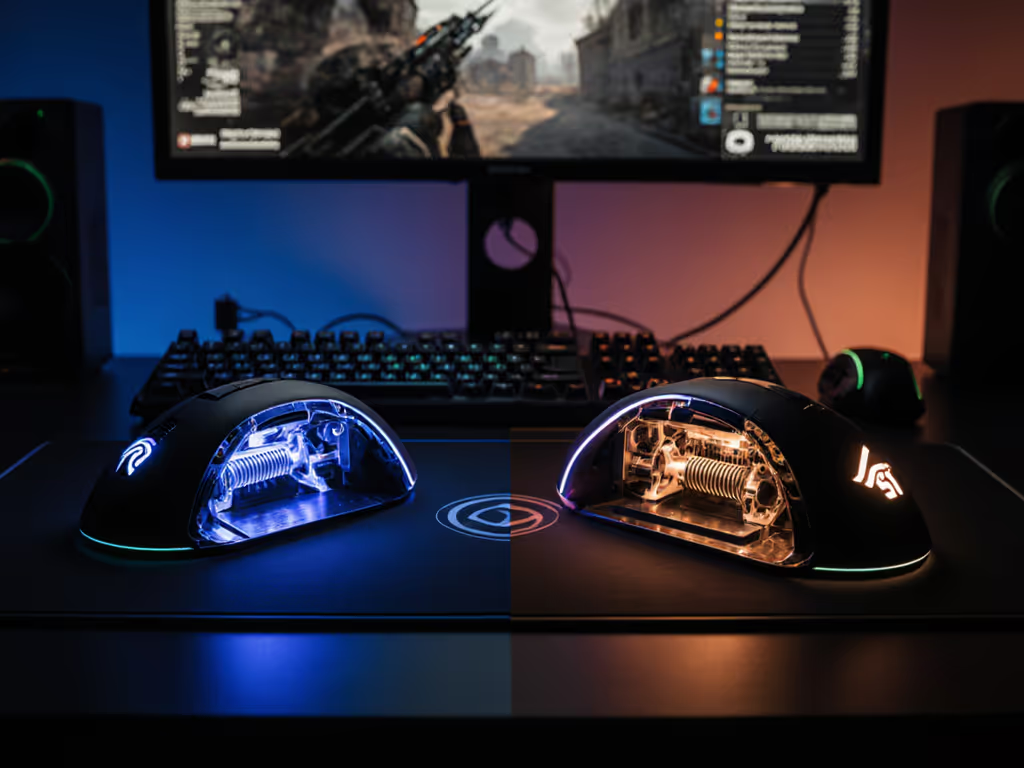
LED indicators work through small light-emitting diodes positioned on the mouse body or base station. When you press a designated button (typically labeled "Mode" or held for a few seconds), the LEDs illuminate to show a visual estimate of remaining battery percentage.
How LED Systems Display Information
Traditional LED setups operate on a binary or graduated scale:
- Single LED status lights: A solid green light might mean "good charge," amber means "medium," and red means "low." When battery drops to 10%, the LED begins blinking red as a low battery warning system. For practical uses of lighting beyond charge status, explore RGB lighting notifications.
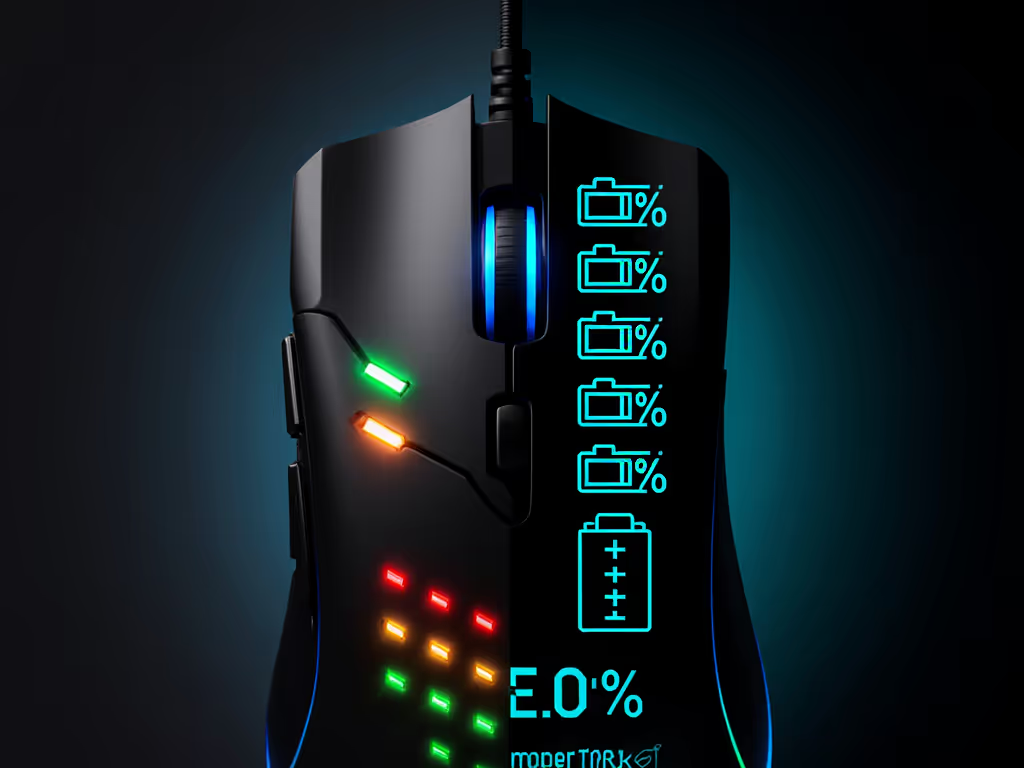
- Multi-LED bars: Some mice and base stations use 4-5 small LEDs in a row; the more lights illuminated, the higher your charge.
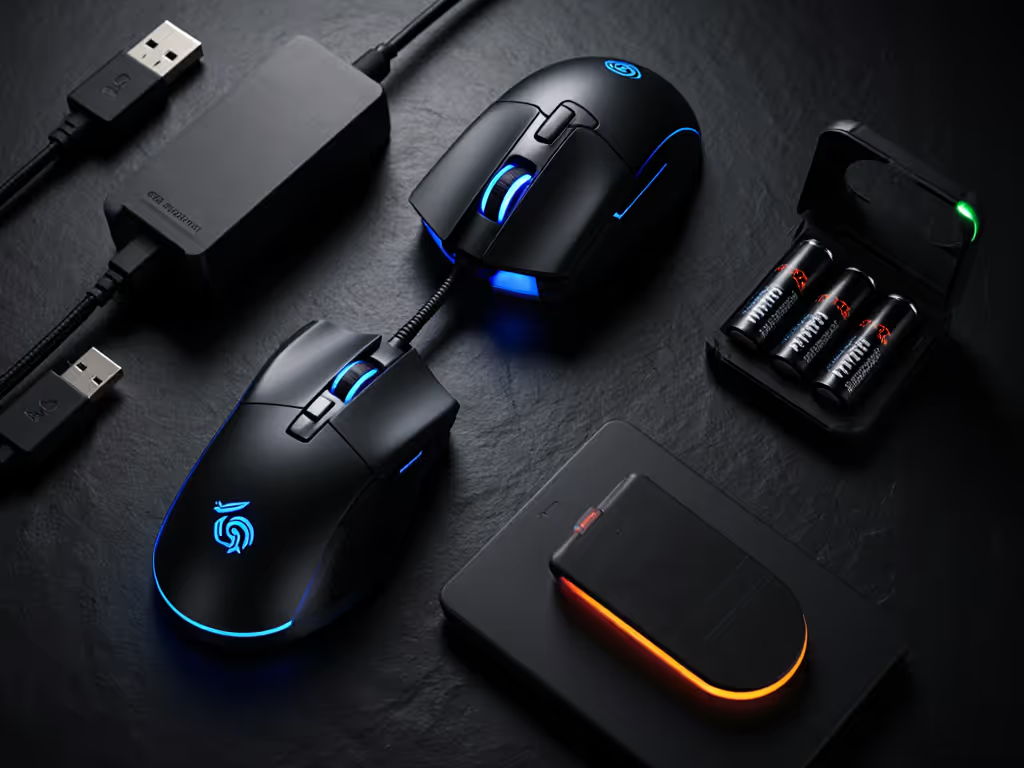
- Wireless base stations: Glorious mice, for example, house battery indicators on their charging dock, showing charge status for both the mouse and the spare battery simultaneously.
Strengths of LED indicators:
- No driver or software required; hold the button, glance at the light.
- Low power consumption; the LED itself draws minimal battery.
- Proven durability; LEDs have been standard for over a decade.
- Works across any OS without setup friction.
Limitations:
- The light is often mounted on the underside or side of the mouse, so you must physically rotate the device to check it.
- Resolution is coarse: you get rough buckets (e.g., "good," "medium," "low") rather than precise percentages.
- In bright environments or daylight streams, the LED can be hard to see.
Step 2: Explore OLED Battery Indicators (Precision, Real-Time)
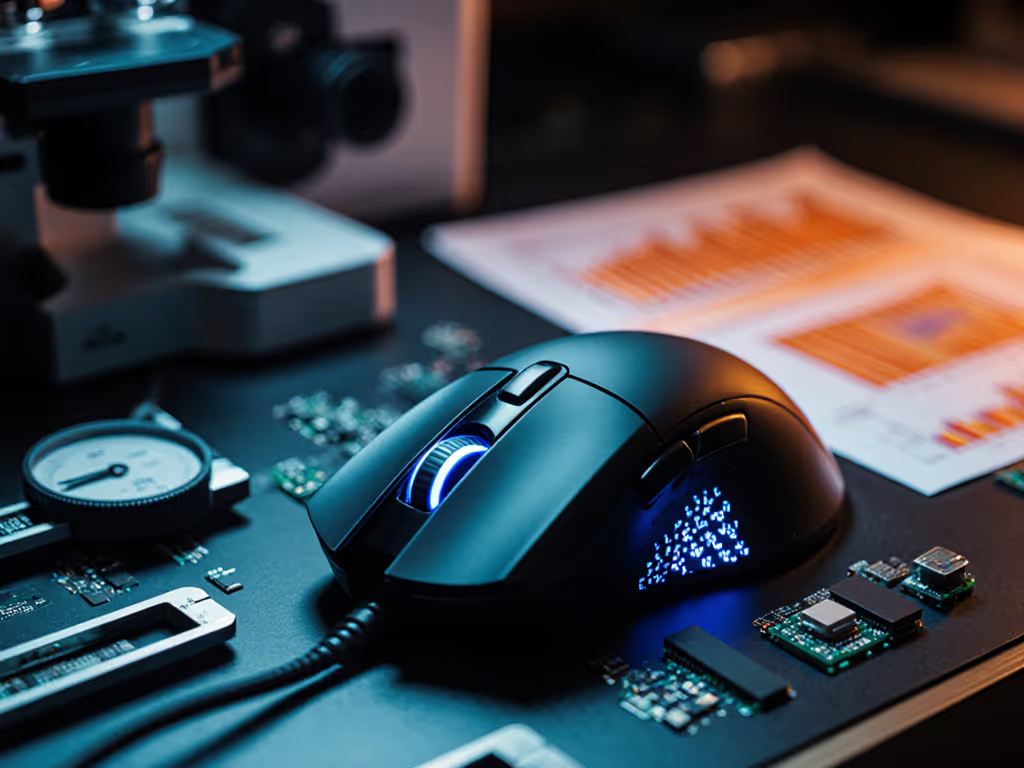
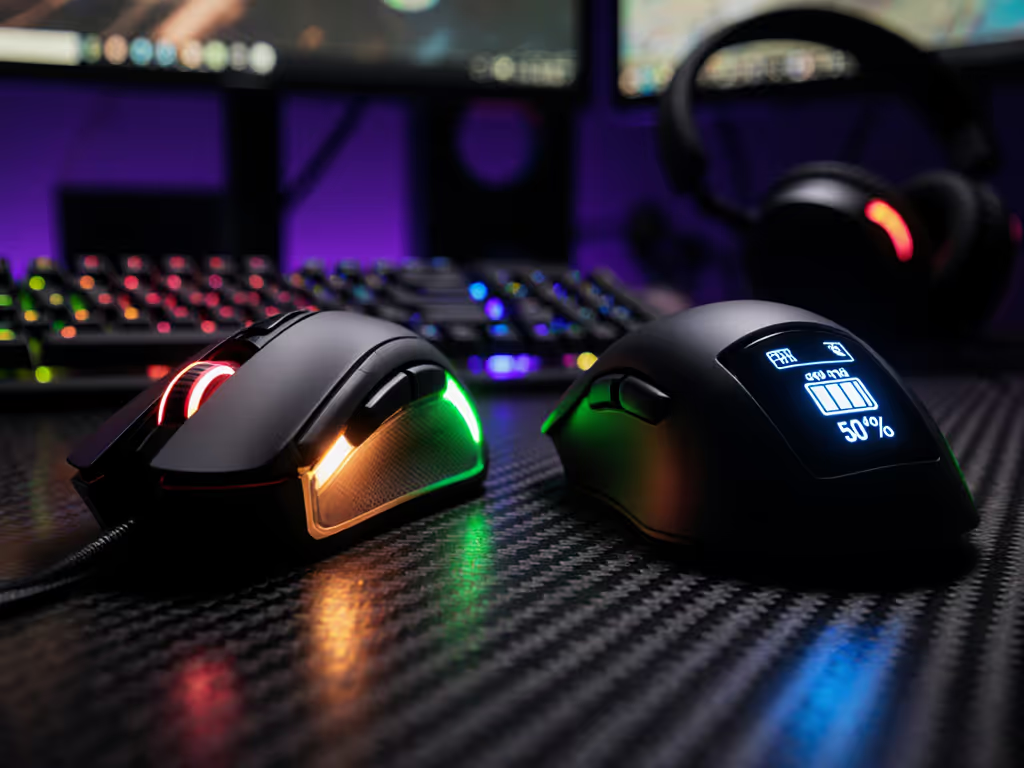
OLED displays are small screens, typically positioned on the underside or side of the mouse, that show granular battery data alongside other settings. Unlike LEDs, each pixel produces its own light. The display updates in real time and often includes DPI settings, polling rate, LOD (lift-off distance, and motion sync configuration, all without requiring external software.
What OLED Screens Actually Show
OLED mice like the Pulsar X2H eS display multiple pieces of data simultaneously:
- Battery percentage: A precise number (e.g., "46%" or "87%") rather than a color estimate.
- DPI display: Current sensitivity setting at a glance.
- Polling rate and LOD adjustments: Real-time confirmation of your settings without opening software.
- Motion sync and debounce settings: Advanced options accessible directly on the mouse.
Strengths of OLED indicators:
- Precise battery reporting: You know exactly how much charge remains, eliminating guesswork.
- Multi-function display: One screen serves as a control hub and information panel, reducing the need for software.
- Better visibility: Lit pixels are readable even in bright rooms.
- Faster setup and tweaking: Adjust polling rate or debounce without plugging into a PC or opening a driver.
Limitations:
- OLED screens have a finite lifespan. Most OLED displays last approximately 30,000-50,000 hours, compared to 100,000+ hours for standard LED components.
- The screen consumes more power than an LED, reducing overall battery life slightly.
- If the display fails, you lose the convenience layer (though the mouse typically still functions).
- The screen can be hard to read if positioned on the bottom of the mouse and you're in a rush.
Step 3: Compare Real-World Battery Life and Accuracy
Battery Longevity in Gaming Scenarios
OLED mice typically deliver 70-100 hours of battery life on a single charge, depending on polling rate and DPI polling intensity. LED-based mice with swappable battery systems (like the Glorious Model D3 and O3) offer 10+ hours per battery cartridge with a second battery always charging in the dock, theoretically eliminating the need to wait for a recharge.
Accuracy of Battery Reporting
OLED displays leverage advanced power management chips (such as the Nordic MCU used in competitive mice) to deliver precise, real-time battery readings. For a deeper look at power systems, charging methods, and efficiency, read our gaming mouse battery technology explainer. LED systems, by contrast, estimate battery state through voltage sampling and can drift slightly depending on temperature, charge cycles, and load. In practice, if an LED shows "medium," your actual charge might be anywhere from 40-65%.
Pain-free hands play steadier; knowing your battery state with precision lets you plan your session without mid-game anxiety.
Step 4: Assess Low Battery Warning Systems
How Each Technology Alerts You
LED warning protocol:
- At 10% battery, the LED begins blinking red, signaling imminent shutdown.
- Some mice pair this with an audible chirp or haptic pulse to ensure you notice.
- The warning is visible only when you actively check the light.
OLED warning protocol:
- The display updates in real time, so you can see battery percentage drop continuously.
- Many OLED mice shift the displayed color to red or flash the number when charge drops below a threshold (e.g., 15%).
- Because the screen is always accessible, you catch the warning faster, with no need to remember to check the button.
Why Precise Warnings Support Hand Health
When you receive a vague warning ("it's probably low"), you tense up. You grip tighter. You rush your movements to wrap up the session before the battery dies. Over time, this muscular tension compounds into forearm fatigue and wrist strain. A precise battery display showing "23%," for example, lets you plan the session calmly. You know you have time for another 30 minutes. Your hand stays relaxed. Your grip stays neutral. Your crosshair stays stable.
Step 5: Choose Based on Your Gaming Context and Hand Setup
LED Indicators Are Better If…
- You prioritize maximum battery life and minimal power overhead.
- You game on a tight budget and can tolerate coarser battery estimates.
- You use a wireless base station (common in ergonomic mice) that displays charge on the dock, so you don't need to check the mouse itself.
- You value proven durability and don't want to risk OLED screen failure.
- You prefer the simplicity of "check once per session and plan accordingly."
OLED Displays Are Better If…
- You play competitive shooters or streaming sessions lasting 4+ hours, where battery paranoia can derail focus.
- You want to adjust DPI, polling rate, or LOD mid-session without software, improving your ability to tune the mouse to your hand size and grip on the fly.
- You stream or record; seeing real-time settings on the display reduces the friction of explaining your setup to viewers.
- You can tolerate slightly reduced battery life (typically 10-15% lower than LED-only mice) in exchange for precision and control.
- Your gaming space is bright; LED indicators are harder to spot in daylight.
Step 6: Integrate Battery Monitoring Into Your Session Routine
Pre-Session Protocol
- Check battery level before plugging in your mouse and booting the game.
- Note the percentage (if OLED) or observe the LED color.
- Plan your session length: If battery is 45%, assume 3-4 hours of gameplay at 1K polling before needing to recharge or swap batteries.
- Test your grip: With the mouse fully charged, trace your hand and confirm the shape still supports your neutral wrist posture. Long sessions with a fatigued wrist amplify strain.
Mid-Session Check-In
If using OLED, glance at the display every 60-90 minutes. If using LED, check the button every 2 hours. This rhythm keeps you informed without fracturing your focus. If battery drops below 20%, plan a 5-minute break, stretch your forearm, shake out your hand, and hydrate. This micro-break resets micro-tension and prevents cumulative strain.
Post-Session Battery Management
- Swappable battery mice (LED): Immediately swap the depleted battery into the charger dock. Your spare is always ready, and you never face downtime. For uptime tips and failure rates, see our charging dock reliability guide.
- Rechargeable mice (OLED or LED-only): Plug in as soon as you're done gaming. Overnight charging ensures you start fresh the next session with 100% confidence.
Step 7: Cross-Reference with Your Mouse Specifications
When evaluating a gaming mouse battery indicator system, look beyond the marketing and confirm these data points:
| Specification | What It Means for You |
|---|---|
| Battery capacity (mAh) | Higher = longer life. A 500mAh battery typically yields 70-100 hours; a 200mAh yields 20-30 hours. |
| Polling rate support | 1K Hz draws less power than 4K or 8K. If you play at 8K, battery life drops proportionally. |
| Display type | OLED = precise but shorter lifespan. LED = coarse but robust. |
| Charging method | Swappable batteries = never without a mouse. USB-C wired = simpler but introduces downtime. |
| Low-battery threshold | Confirm the exact percentage at which warnings begin. 10-15% is standard. |
Step 8: Test Your Chosen System Over a Long Session
Once you've selected a mouse with your preferred indicator type, commit to a 4-6 hour gaming block (a realistic competitive session or stream length) and monitor three factors:
- How often did you check the battery display? If you checked more than once per hour, the indicator isn't providing enough clarity or you're experiencing anxiety, a sign the system isn't serving your comfort.
- Did your grip or wrist tension shift as battery dropped? Neutral wrist posture should remain consistent throughout. If you noticed your wrist angle change as battery dipped below 30%, the warning system wasn't clear enough.
- How accurate was the final reported percentage versus when the mouse actually powered down? This confirms whether the battery reporting system is trustworthy for future sessions.
Moving Forward: Refine Your Battery Management Strategy
Neither LED nor OLED is universally superior, the best system is the one that supports your hand health and reduces cognitive friction during play. If you tend toward longer sessions (4+ hours), OLED's precision lets you plan with confidence. If you're budget-conscious and prefer simplicity, LED with a swappable battery dock (like Glorious mice) removes the stress of unexpected shutdown entirely.
The deeper principle remains unchanged: a clear, accessible battery management system while gaming eliminates a subtle but pervasive source of tension. That calm translates directly into steadier mechanics, tighter micro-adjustments, and fewer wasted movements born from distraction or worry.
Test both technologies if you can. Borrow a friend's OLED mouse for a session or visit a local esports cafe where multiple setups are available. Pay attention to whether you felt more in control and less anxious about battery state. That subjective sense of calm and control (where the mouse becomes an invisible extension of your hand) is the real measure of whether your gaming mouse battery indicator is working for you.
Your hand's comfort over long sessions compounds into consistency over time. Choose the indicator system that supports that quiet confidence.
Related Articles