Gaming Mouse Accessibility: Adaptive Input for Tremors
By Ananya Rao • 13th Jan
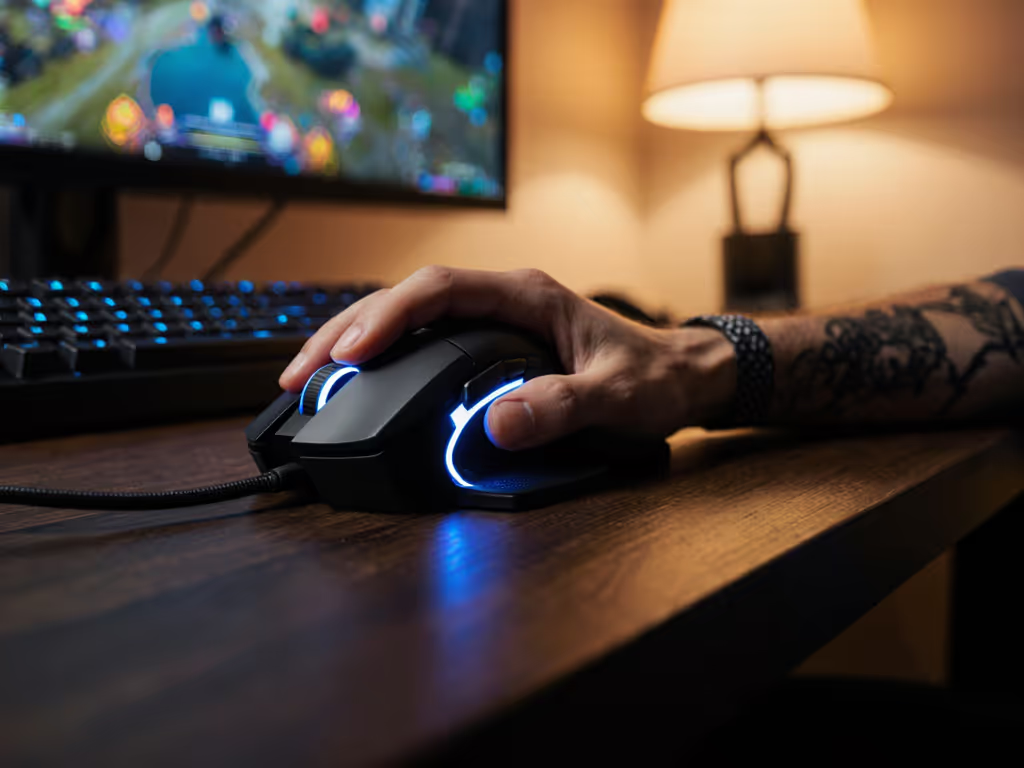
For gamers living with essential tremor, Parkinson's, or other movement challenges, the quest for gaming mouse accessibility features shouldn't mean sacrificing performance. When your gaming mouse becomes a source of frustration instead of precision, adaptive solutions can transform chaotic cursor movements into controlled, competitive advantage. Unlike standard mice designed for steady hands, specialized tremor compensation technology addresses the unique interplay between involuntary motion and split-second gaming demands, without forcing you into bulky peripherals or compromising responsiveness. For a broader overview of hardware and software options, see our accessible gaming mice guide. Today, we'll explore how to leverage these innovations to reclaim your aim, confidence, and enjoyment.
Why Standard Gaming Mice Fail Under Tremor
Most high-DPI gaming mice amplify subtle hand movements for pixel-perfect tracking. But when neurological tremors introduce high-frequency oscillations (typically 3-12 Hz), this sensitivity backfires. Your cursor doesn't just drift (it jitters), sabotaging headshot accuracy or menu navigation. Crucially, adaptive input sensitivity isn't about reducing DPI alone; it's about distinguishing intentional motion from tremor. Traditional low-pass filters (like those in older assistive devices) merely smooth movement, adding latency that ruins reaction time. Modern gamers need smarter solutions that preserve responsiveness while neutralizing shake.
Step 1: Diagnose Your Tremor Pattern (No Tools Needed)
Before adjusting settings, understand your tremor's behavior. This isn't medical diagnosis (it's biomechanical awareness). Perform these quick checks: If grip strain is a trigger, start with our gaming mouse ergonomics guide to dial in hand size and posture before filtering.
- The "Hold-and-Stare" Test: Rest your forearm on your desk, elbow bent 90°. Extend your index finger toward your monitor. Observe its motion:
- Shaking only during movement? → Likely kinetic tremor (common in essential tremor). Solutions need motion-triggered filtering.
- Shaking at rest? → Possible rest tremor (common in Parkinson's). Requires constant stabilization.
- Steady until you grip? → Postural tremor. Focus on grip ergonomics first.
- Frequency Check: Open Aim Lab's "Tracking" scenario. Record your crosshair path during slow horizontal sweeps. Notice the wiggle density:
- Tight, rapid zigzags = high-frequency tremor (prioritize micro-adjustment filters)
- Wide, slower waves = low-frequency (focus on smoothing larger deviations)
Gentle reminder: Your tremor isn't "weakness." It's a physiological signal. Mapping it helps you work with your body, not against it.
Step 2: Leverage Adaptive Input Sensitivity
Today's most effective tremor compensation technology dynamically adjusts based on real-time movement analysis. Here's how to harness it:
Hardware Adapters: The Plug-and-Play Fix
Devices like the AMAneo USB Assistive Mouse Adapter sit between your mouse and PC, applying intelligent filtering. Unlike basic software, these analyze raw sensor data before it reaches your OS:
- Tremor-specific calibration: Adjust filters using physical dials (no software bloat) to match your tremor's amplitude/frequency. Pro tip: Start with "medium" settings, then test in-game during slow strafes. Reduce filtering until micro-shakes reappear, then dial back slightly.
- Dwell-click integration: For severe tremors, enable dwell functions (e.g., hovering 0.5s triggers a click). This prevents accidental triggers during shaky aim adjustment.
AI-Powered Software: Context-Aware Filtering
Newer solutions like SteadyMouse software go beyond static filters. They use algorithms that learn your tremor patterns:
- Target-size adaptation: When targeting small icons (e.g., an enemy's head), the software increases stabilization intensity. Larger targets (e.g., menus) receive lighter filtering, preserving natural movement where precision matters less.
- Motion-intent prediction: Analyzes your cursor's trajectory. If 80% of micro-movements reverse direction within 20 ms (a tremor signature), it suppresses those inputs while preserving directional intent.

After weeks of burning forearms during long scrims, I traced my hand and switched from a tall right-leaning shell to a lower ambi with gentler flare. Within days, pain subsided. My crosshair stopped drifting on holds.
Step 3: Optimize Your Gaming Setup for Consistency
Technology alone won't fix misaligned mechanics. Layer these ergonomic tweaks:
Neutral Posture Anchors
- Wrist angle check: Place a ruler along your forearm. Your wrist should show zero upward/downward tilt. A slight downward slope (5-10°) is acceptable for claw grip; flat is ideal for palm grip.
- Shoulder test: Relax your shoulders fully. If they're hunched, raise your chair or lower your desk. Elevated shoulders tighten forearm muscles, worsening tremor.
- Grip width: Measure your palm width (mm) across knuckles. If your mouse forces finger splay beyond 30°, strain amplifies tremor. Aim for a shell that lets fingers rest at 15-20° splay.
Game-Specific Calibration
- FPS/MOBA: Prioritize micro-smoothing. In SteadyMouse, set "tremor threshold" to 70%. This ignores tiny shakes but preserves flick speed. For adapters, use "high-frequency" mode.
- RTS/RPG: Enable cursor clamping. When hovering menus, tremor suppression locks the cursor within target zones (e.g., a 10-pixel radius), eliminating misclicks. If your pointer still jitters on certain desks or pads, follow our surface calibration guide to reduce sensor noise before adding more filtering.
- Wireless note: Disable 4K/8K polling if using tremor software. Higher polling amplifies noise. To set sensible baselines, review our breakdown of DPI and polling rate and how they impact stability. Stick to 1K Hz (proven stable in Tremor Filter studies in 2025) with 0.5 ms latency.
The Performance Paradox: Why Comfort Is Speed
Gamers often assume tremor compensation slows reaction time. But research tells another story: in TRECEY algorithm trials, Parkinson's patients using eye-tracking stabilization saw faster target acquisition (12% avg. improvement) because their cursor moved predictably. When your hand isn't fighting against its own motion, muscle memory deepens. Your focus shifts from suppressing tremor to executing plays.
Comfort is speed. A solution that reduces wrist deviation by even 5° lessens forearm fatigue during 4-hour sessions, meaning your aim stays stable deep into ranked matches. That's how adaptive input transforms accessibility into advantage: not by masking tremor, but by freeing your intent to shine through.
Next Steps for Smoother Control
Your journey to stable aim starts with observation, not overhaul. This week:
- Run the "Hold-and-Stare" test during cooldowns.
- Try a free trial of SteadyMouse (Windows) or test AMAneo's demo settings.
- Measure your palm width and compare to mouse grip widths in reviews.
For deeper technical validation, explore the TRECEY algorithm paper's gaming-focused metrics (particularly how target-size adaptation reduced error rates by 34% in simulated tremor scenarios). Remember: the goal isn't perfection. It's consistency. When your tools adapt to you, your precision multiplies. Pain-free hands play steadier; comfort multiplies your precision.
Related Articles