Gaming Mouse Firmware: How Updates Impact Performance
By Diego Alvarez • 3rd Mar
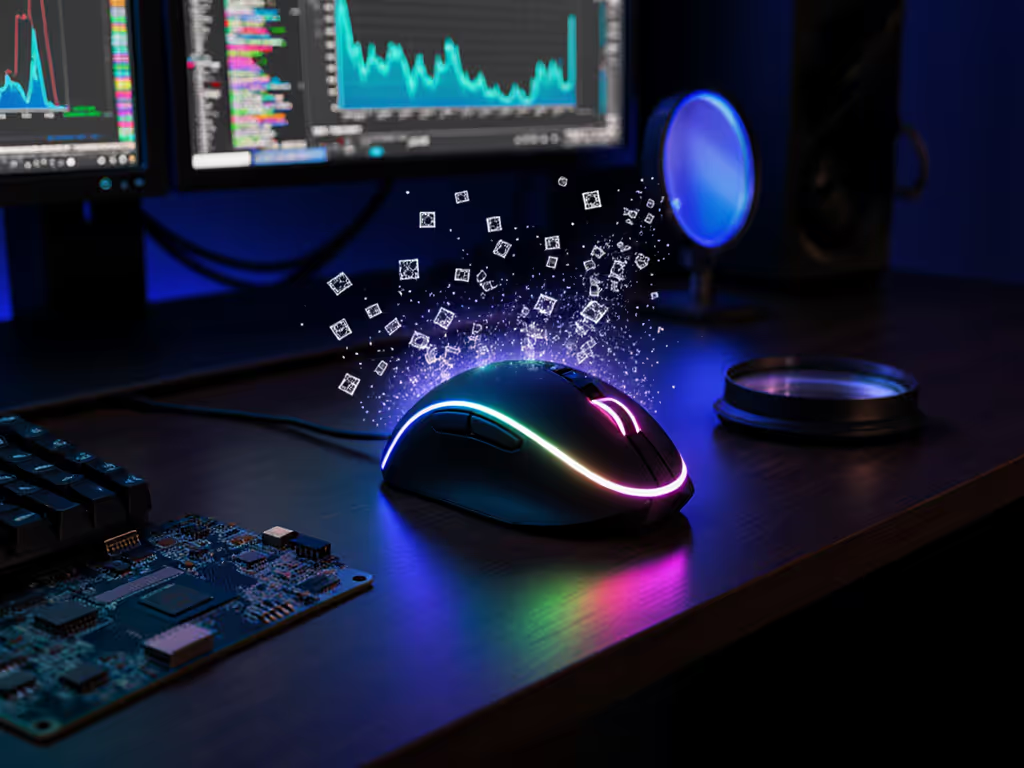
When a gaming mouse firmware update drops, most players either ignore it or install it without thinking. Here's what actually matters: mouse firmware impact on performance is real but narrowly scoped. Firmware can sharpen tracking latency, fix sensor quirks, and stabilize wireless connection. It cannot repair a broken switch, rebuild a damaged lens, or overcome a mismatched grip. Knowing where updates help (and where they don't) saves you from chasing marginal gains and wasting hours troubleshooting.
1. Understand What Firmware Actually Controls
Mouse firmware is not a magic patch. It's low-level code that tells your sensor how to behave, manages USB polling timing, and handles wireless radio cycles. The most critical firmware component is the SROM (sensor read-only memory), which loads into your sensor every time the mouse connects to power. Changing the SROM changes how the sensor processes raw tracking data, not the data itself.
This distinction matters. Firmware can reduce lift-off distance, lower cursor response latency by tweaking when data packets ship to your PC, and filter sensor noise across different mousepad textures. For step-by-step optimization, read our Lift-Off Distance guide. Firmware cannot fix a mechanical switch bouncing, repair a cracked lens, or magically boost your DPI beyond physical sensor limits. Many manufacturers stack newer firmware onto older sensors to inflate feature lists, pushing hardware beyond intended limits, which actually degrades performance at higher polling rates.
Firmware optimizes what the hardware already does. It does not replace broken hardware.
2. Know When Firmware Updates Actually Improve Aim
Logitech reported that many of their mice never need firmware updates. When they do roll out updates, the reason falls into one of three categories: bug fixes, performance tuning, or cosmetic features.
Performance tuning is rare and valuable. Logitech's G402 received a firmware update to improve tracking responsiveness. Cooler Master's CM Storm Spawn got multiple SROM updates to lower lift-off distance and cut latency. These are testable, meaningful changes.
Bug fixes address real problems discovered post-release. SteelSeries identified a tracking bug caused by a sensor manufacturer's SROM update to the Rival; they worked backward, releasing a corrective firmware version. This scenario benefits you, so take the fix.
Cosmetic features like LED pulsing (G502) do not affect aim and are not worth the risk of a firmware flash going wrong. Stability matters more than flashy additions.
Before updating, check community forums like r/MouseReview and dedicated Discord servers. If other users report stability issues with a new version, wait for a patch or skip it entirely.
3. High-Polling Firmware Requires System-Level Alignment
If your mouse supports 8K (8000Hz) or 4K (4000Hz) polling, firmware updates often optimize the MCU (microcontroller) and USB report timing to stabilize those rates and reduce motion lag. See our 8000Hz polling comparison for tested gains and limitations. At 8K, Motion Sync (which ensures every USB report contains the newest movement data) reduces jitter to negligible levels (less than 0.1ms penalty).
However, this only works if your entire stack is dialed in. Outdated BIOS, chipset drivers, or USB controller firmware on your motherboard will bottleneck a high-polling mouse. Before flashing 8K-optimized firmware, update your system BIOS and chipset drivers. Plug the 8K receiver into the same USB port during and after the update. After the flash completes, power-cycle the mouse fully. This cold boot loads the new polling rate tables into memory.
Verify the update took hold using a web-based polling rate tester. If your mouse reports lower-than-expected polling rates post-update, check NVIDIA Reflex Analyzer to measure end-to-end system latency and identify the bottleneck.
4. Firmware Troubleshooting: When Updates Break Things
Firmware is also where things go wrong. A flawed SROM can introduce jitter, surface calibration errors, or wireless micro-stutters. If after updating you notice aim inconsistency, erratic cursor jumps, or sudden latency spikes, roll back to the previous firmware version if your software allows it.
How to update mouse firmware safely:
- Connect your mouse directly via USB (for wired or dongle-based wireless mice).
- Launch your mouse's official software (e.g., ATK Hub, Logitech G Hub, SteelSeries Engine) and navigate to device settings.
- Check your current firmware version and confirm an update is available.
- Do not interrupt the update; let it complete fully, even if it takes 2 to 3 minutes.
- After flashing finishes, disconnect and fully power-cycle the mouse.
- Test in-game at your normal sensitivity and DPI before committing to the new version. Unsure about settings? Start with our DPI and polling guide.
If a firmware update causes tracking instability, roll back immediately and report the issue to the manufacturer. Do not assume your mouse is defective. The firmware may simply be buggy for your specific sensor revision or system configuration.
5. Firmware vs. Driver vs. Software: Know the Difference
Many gamers confuse firmware with driver updates. For software pros and cons, check our G Hub vs Razer Synapse analysis. Firmware lives on the mouse hardware itself and controls the sensor and MCU. Drivers are OS-level software on your computer that communicate with the mouse. Application software is the mouse's control panel where you set DPI, polling rate, and profiles.
You should update all three, but separately and in order:
- Update motherboard BIOS and chipset drivers (system-level optimization).
- Flash mouse firmware (sensor and MCU behavior).
- Install or update mouse driver software (Windows/macOS recognition and stability).
- Update the mouse control application (access new features, profiles).
Skipping step 1 or 3 will leave performance on the table, especially at high polling rates. Some mice require OS-specific drivers; others work plug-and-play on Windows but need third-party drivers on macOS or Linux. Check your manufacturer's support page before assuming your setup is complete.
6. Battery and Wireless Stability: Firmware's Hidden Wins
Wireless mice rely on firmware to manage radio cycles and CPU interrupts, reducing latency spikes caused by power management conflicts. For a deeper look at power systems, see our battery technology explained guide. A firmware update can stabilize wireless connection consistency, lower interference sensitivity, and even improve battery efficiency by optimizing how often the MCU wakes to send position data.
If you own a wireless mouse with 2.4GHz or Bluetooth, and you notice inconsistent responsiveness (micro-freezes, cursor lag), a firmware update may resolve the issue before you blame the dongle or switch to wired. Conversely, if a new firmware version introduces wireless microstutter, revert immediately. This is a sign the update prioritized one metric (e.g., lower latency polling) at the cost of connection stability.
7. When Not to Update: The Stability Argument
If your mouse is performing well in-game and you have no reported bugs, skipping firmware updates is a valid choice. Stability beats novelty. I've standardized settings across a team of mice during tournament season: swapped out stock feet for consistent glide, locked in reliable DPI profiles, and avoided any firmware changes two weeks before competition. Returns dropped to zero. Scores climbed. The lesson: once you find a firmware version that works, stick with it unless there's a specific performance gain or critical bug fix on the table.
Check your manufacturer's release notes. If an update is labeled "optional" or "cosmetic feature addition," treat it with skepticism. Only flash if the note specifies "latency reduction," "tracking fix," or "stability improvement." Spend on aim, not on shelf candy or logos.
Next Steps: Test, Document, Verify
Before updating your mouse firmware, write down your current version, DPI, polling rate, and lift-off distance in a note. After the update, run a 5-minute Aim Lab or Kovaak's scenario at your match sensitivity and compare your accuracy to a baseline run from last week. If your grouping tightens, the update worked. If it widens or feels sluggish, roll back and stay on the older version.
Join communities like r/MouseReview and check YouTube channels that measure polling rate stability and latency before upgrading. Real data from other users with your exact mouse model and OS will tell you whether an update is a net win or a risk. Trust the pattern, not the press release. Update deliberately, not because a notification popped up. Once you dial in a working firmware version, your mouse will reward you with the stability and predictability that turns practice gains into match wins.
Buy once, aim long. Your firmware strategy should reflect this principle: seek updates that measurably improve tracking, latency, or stability, and avoid the rest. A mouse that just works (today and six months from now) beats a constantly-chased feature roadmap every time.
Related Articles